As we continue to gather feedback from our users and ship improvements for Suno Studio, we’re excited to announce a few new features.
Clearer Clip Settings & Info Panel
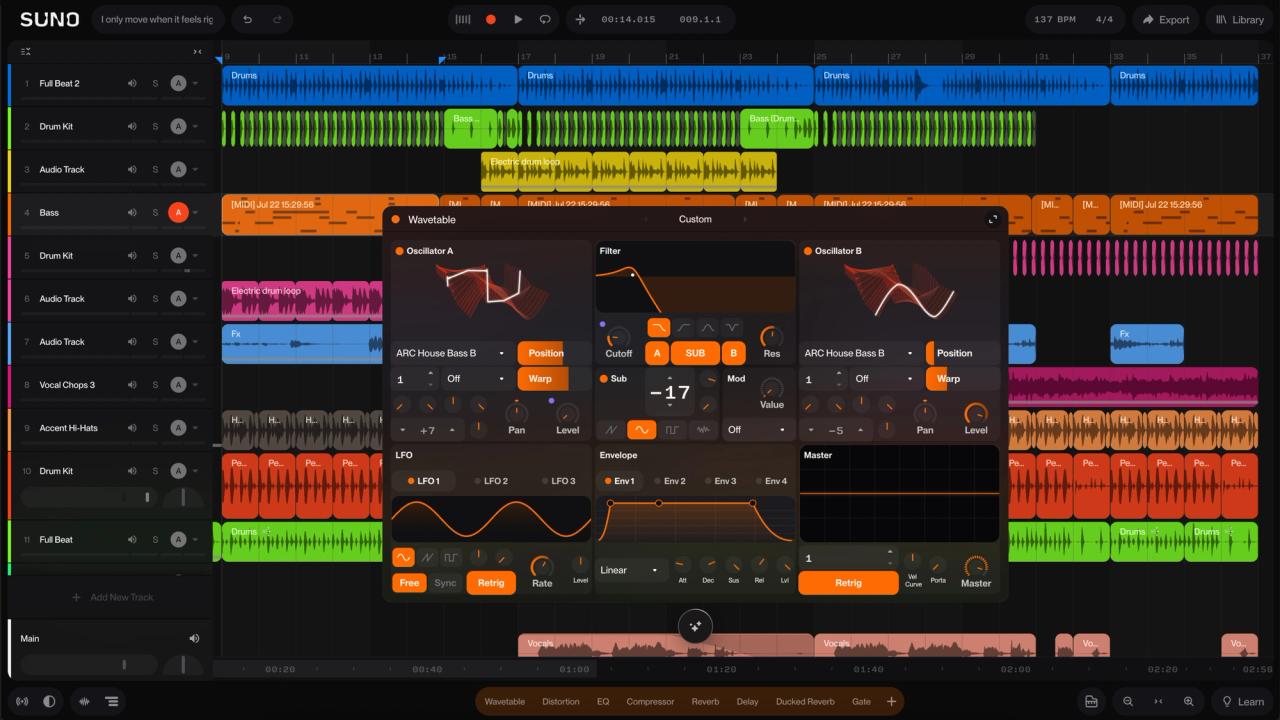
We heard from a lot of you that the Clip Settings in Studio 2.0 were hard to find and difficult to read, due to their small size. Now, Clip Settings are in a sidebar to the left of the waveform viewer. Double-click on a clip to access volume, pitch, loop, reverse and timestretching features, all from one clearer and more spacious panel.
A clip’s lyrics, style tags, and stem separation can now be found in the new Clip Info panel, accessible from the "Clip Info" item in the audio clip right click menu, or the button at the bottom of the new Clip Settings sidebar.
Auto-stretch for Added Audio
We’ve added a new setting that lets you specify whether added audio from your library or through file uploads gets automatically timestretched to the project tempo. Clips without a steady beat, and groups of stems uploaded at the same time, keep their original timing. Generated clips are not affected by this feature.
Fine Pitch Adjustment
We’ve added fine pitch adjustment so you can tune clips by semitones and cents. For example, to enter a value of 2 semitones and 38 cents, enter 2.38 into the pitch value. This gives you greater control over your clip pitch, which is especially useful when tightening the tuning of recorded audio.
Show/Hide Tracks
Sometimes it’s useful to hide tracks from view, especially in busy sessions or on small screens. Now you can hide tracks using Shift-H, and bring them back into view with Shift-Alt-H.
Grid Density & Contrast
Lastly, we’ve given you more control over the timing grid. Right-click on the top ruler and you now get controls for adjusting grid density and contrast, so you can tailor the grid to your project.
Got feedback? We'd love to hear your thoughts on the new features.