
Step-By-Step Guide: How To Make Beats With Suno
Author
Luis Minvielle
Date Updated

The best way to make beats in 2026 is with Suno, the AI-assisted music creation platform. This guide is written for beginners or content creators who want to make beats with the latest AI-powered music tech. It also fits experienced musicians who need a fast way to sketch ideas before moving into more intensive production, or as bases for complete tracks.
Below, we’ll break down how to make beats with Suno step by step, from setup to export, while explaining where it fits compared to classic beat-making software.
What Is Suno and How It Works for Beat Making
Suno is an online music-making platform built around text-driven music creation. (You can even use text messages to create a song). Users describe the rhythm, tempo, and style they want, and Suno returns a structured song. Suno also has a handy audio input tool, where you can upload any of your previous work and sample it, use it as inspo for another song, cover it in another genre, or extend it.
The difference between Suno and traditional beat maker apps is its workflow. Beat maker apps rely on manual input. Suno works from creative direction first: You can prompt your beat to Suno, and Suno creates it. This makes it easier for beginners to understand how to make beats and get familiar with different styles.
Supported genres and beat styles
Suno supports a full range of genres for creators who want to make beats across styles. Hip-hop, trap, lo-fi, EDM, house, pop, afrobeat, drill, and cinematic instrumentals are all well-supported. You mostly have to describe your desired genre in the prompt panel. Each genre responds best to clear tempo and mood descriptions.
Step 1: Set Up Your Suno Account
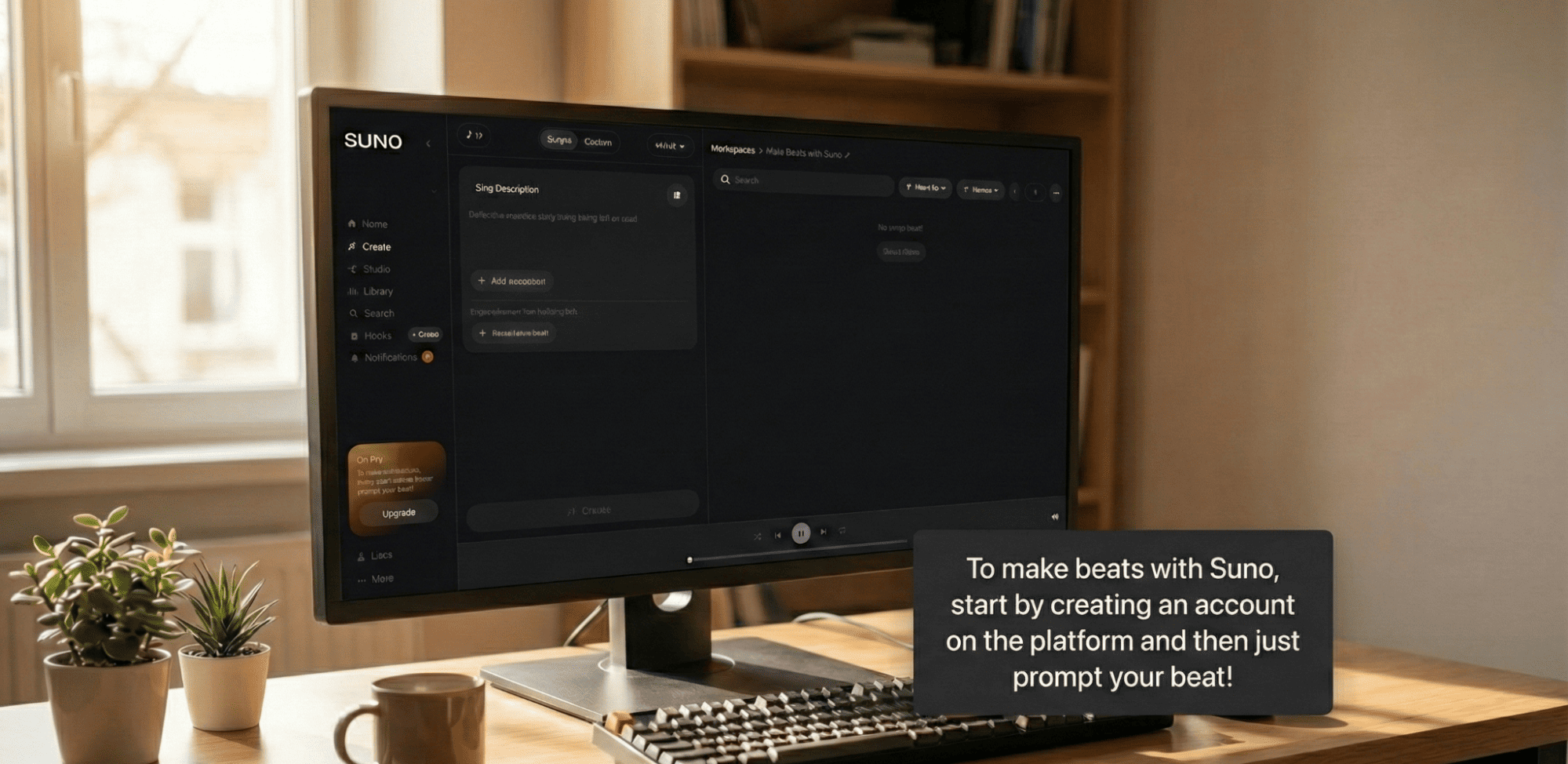
To make beats with Suno, start by creating an account on the platform. The signup process is quick and works on desktop and mobile.
The free plan lets you create beats with daily limits. Paid plans include more song credits, higher-quality exports, longer tracks, and advanced editing tools, like the Song Editor and Suno Studio. If you’re a beginner or hobbyist, Suno’s free plan is more than enough for you to start making beats effectively. You can scale up as your technical needs grow.
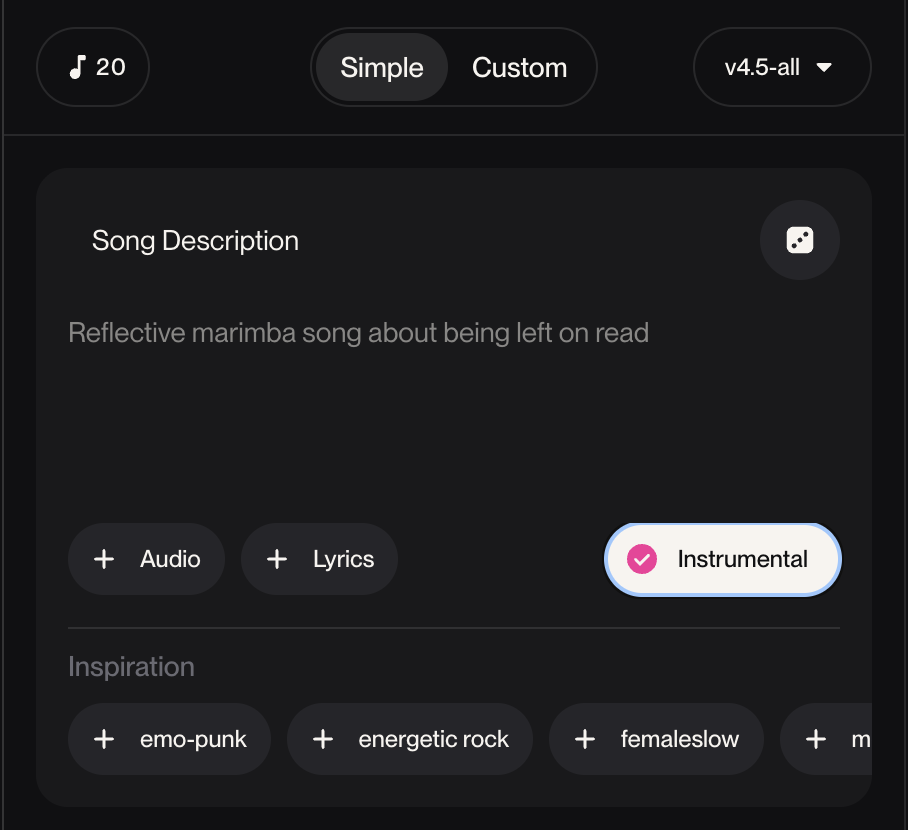
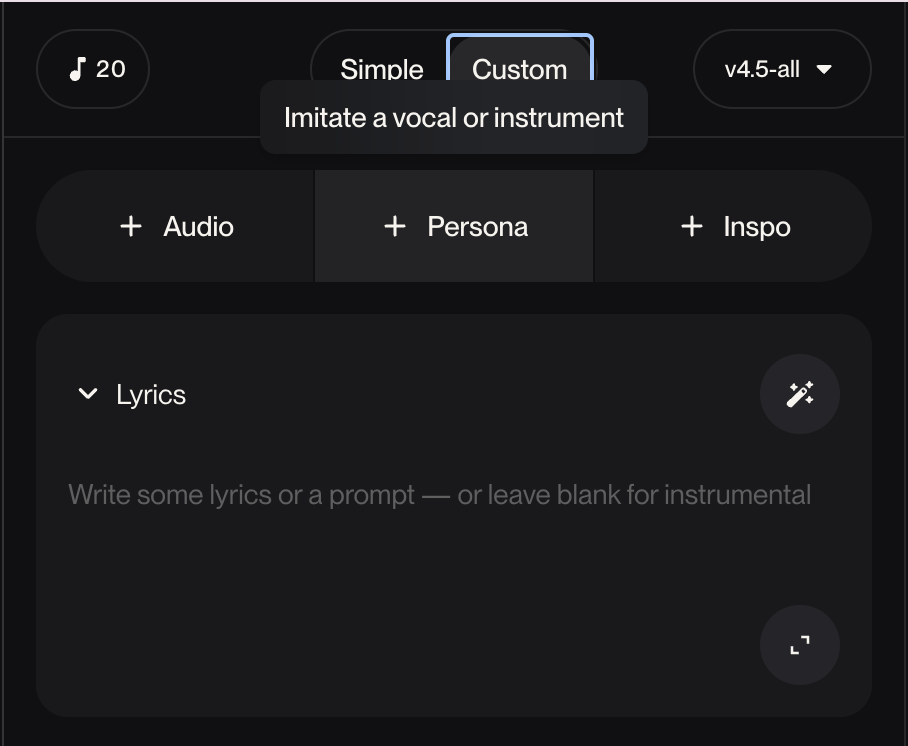
Once you’re on the platform, click Create in the left-hand menu. Open a new workspace to access the area where you’ll make your songs. At the top, you’ll see Simple and Custom modes. The Simple tab includes a single description box for quick ideas. The Custom tab gives you more creative control, with separate fields for lyrics and style plus additional advanced options. This is also where you can work with your own prerecorded material.
Step 2: Choose Instrumental Mode to Make Beats
Instrumental mode is essential when the goal is to make beats without vocals. This setting removes lyrics and voice layers, so the focus stays on rhythm and melody. In the Simple tab, just click Instrumental in the bottom-right corner of the prompt box.
If you’re working in Custom mode, just leave the lyrics box blank.
Step 3: Write a Beat Prompt That Actually Works
To make beats with Suno, you have to understand that it reads prompts as structured instructions. A clear hierarchy matters when learning how to make beats consistently. A strong prompt follows this order: tempo, genre, rhythm style, instruments, and mood. Short sentences perform better than long descriptions, and beat instruments should be named directly to avoid vague results.
Beginner example:
“90 BPM hip hop beat, deep kick, crisp snare, warm bass, minimal melody.”
Advanced example:
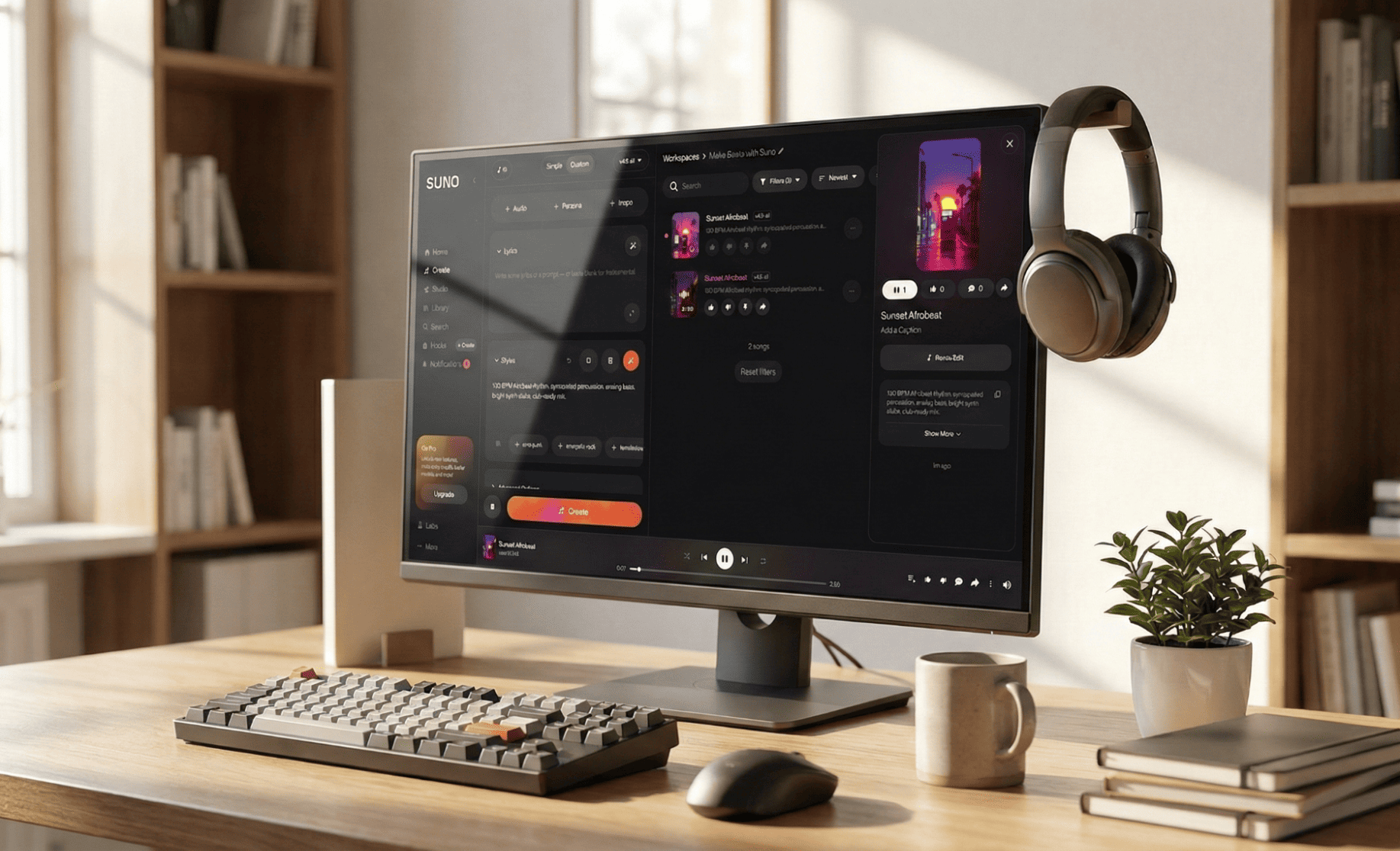
“130 BPM Afrobeat rhythm, syncopated percussion, analog bass, bright synth stabs, club-ready mix.”
Step 4: Generate Your First Beat
Once you’re happy with the prompt, hit Create. The results will appear within seconds to minutes. When reviewing the first output, listen for rhythm consistency, groove balance, and section flow.
Quality assessment matters when learning how to make beats. A strong beat has a clear intro, a stable core loop, and usable transitions.
If the structure feels off, refine your prompt. Start over when tempo or style misses the mark entirely. This process is similar to browsing pre-made beats online, but with more control over structure and direction.
Step 5: Extend and Remix Your Beat
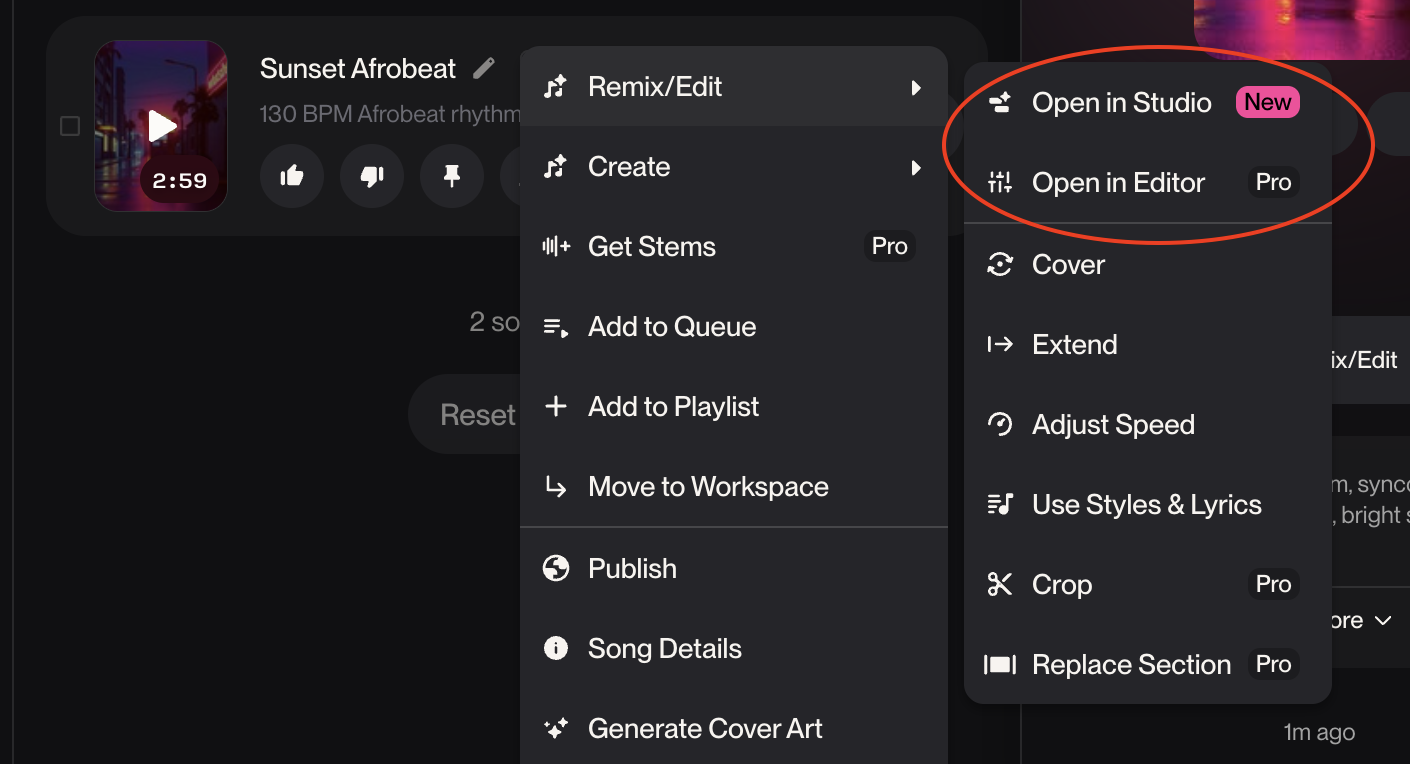
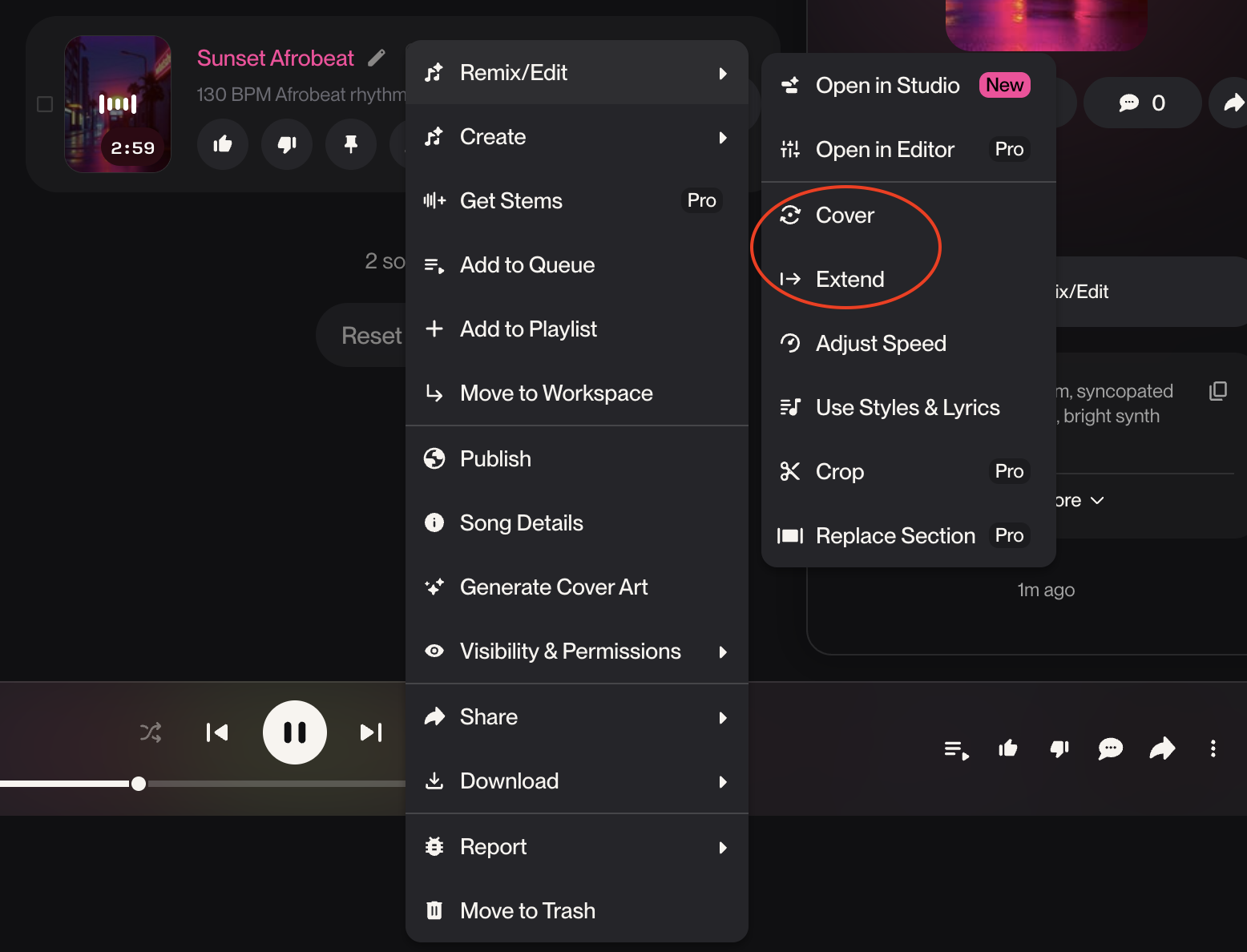
Beat extension allows creators to turn short ideas into full-length tracks. You can use this with your prerecorded audio or with beats you made directly on Suno. You can also remix or cover it to tweak genre, tempo, and instrumentation. These tools allow you to make beats and loops with a similar vibe across different styles and projects without worrying it will feel disconnected.
Step 6: Download and Export Beats
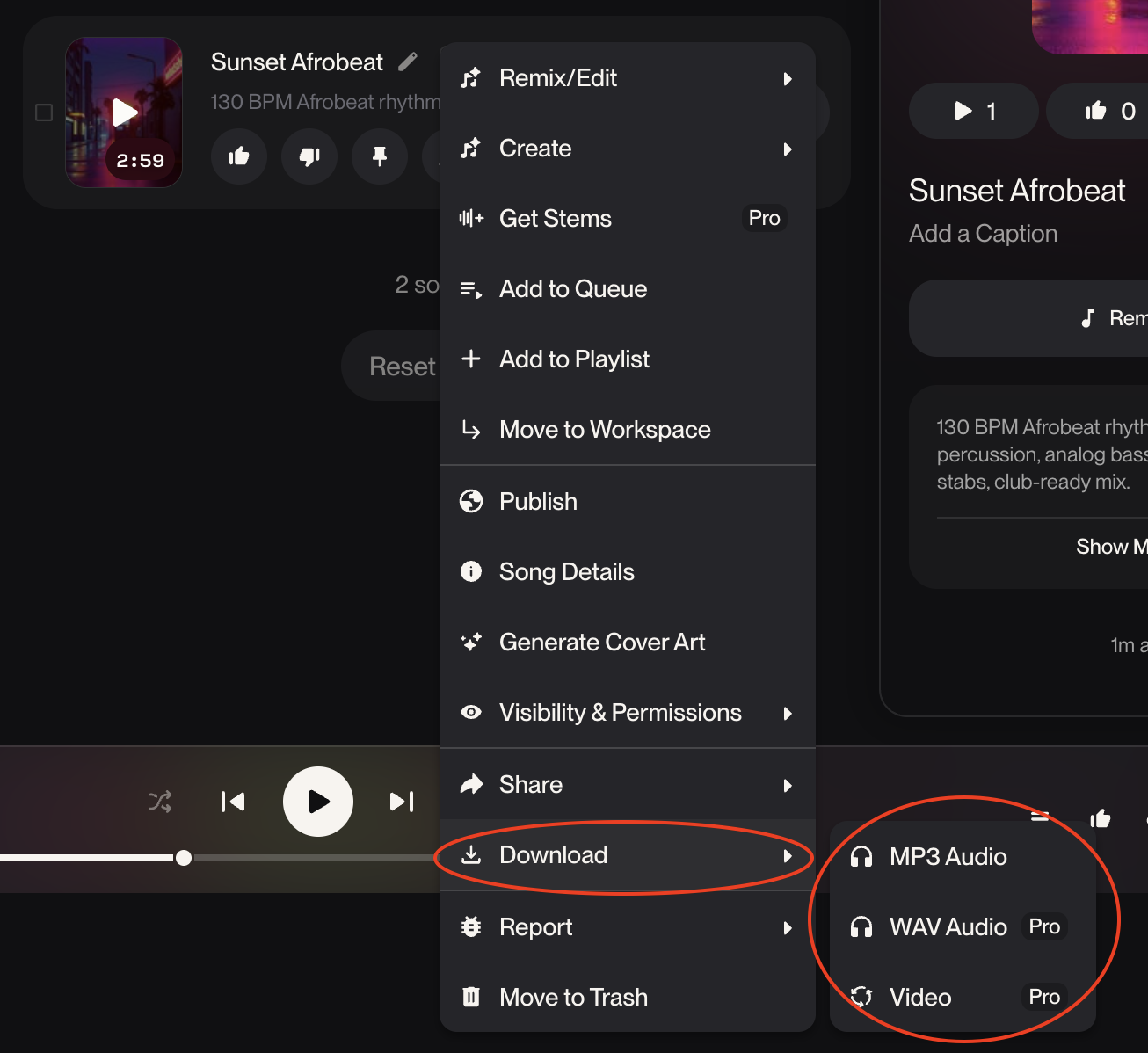
After you make beats with Suno, you have multiple export formats to choose from, depending on your plan. MP3, available for free plan users, works for demos and content creation. Pro and Premier plans support WAV and MIDI export. WAV files preserve full audio quality, ideal for mixing and mastering in professional software. MIDI files contain note and timing data instead of sound, so producers can later change instruments, patterns, tempo, and arrangement inside any compatible DAW.
Usage and ownership rights in Suno depend on your subscription tier. Paid users can use beats commercially across platforms like YouTube, Spotify, and client projects. Free plan users can use their Suno beats throughout personal projects.
Step 7: Use Suno Beats With Other Tools
With the Pro plan, Suno’s Song Editor lets you refine sections and stems, rewrite lyrics, swap verses, and more. Premier users can also hop onto Suno Studio, the first AI-native DAW, which comes with timeline editing, layering, and hands-on control. You can also export beats to your usual DAW if you want to make beats with Suno but get into deeper arrangement and mixing with your usual setup.
Suno vs. Traditional Beat Maker Software
Suno works as a natural complement to traditional DAWs for producers who already know their tools. If FL Studio, Ableton, or another DAW is your usual setup, you can make beats with Suno earlier in the process to try new ideas or alternative arrangements that you can reshape with full control.
If you're not familiar with other platforms and want to keep it in the Suno ecosystem, you can get into deeper arranging and mixing on the Song Editor (Pro plan) and Suno Studio (Premier plan).
Add Suno into Your Beat-Making Workflow
Suno is built for anyone who wants to make beats, be it beginners experimenting with rhythm for the first time, musicians sketching ideas, content creators looking for royalty-free music, or producers building the foundation of a full track.
Suno’s beat maker works as a strong complement to traditional beat-making software or as a standalone tool. It can be used to explore ideas, develop arrangements, or establish the core of a song before moving into deeper production.
Sign up for Suno for free and start making beats today.
FAQs: Make Beats and How to Make Beats
Can Suno replace a professional beat maker?
Yes. Suno can replace a professional beat maker because it creates complete beat compositions directly on the platform. More detailed editing is available if you want it, but using advanced tools is a creative choice, not a requirement.
Is Suno good for beginners who want to make beats
Yes. Suno works for anyone who would like to make beats. Beginners can explore rhythm and structure without prior experience, while experienced producers can use it as part of an established workflow.
Are Suno beats royalty free
Suno has clear ownership rules. Beats made on the Free plan can be used for personal projects. Pro and Premier users can monetize their songs and beats under the platform’s commercial terms.
Can I sell beats made with Suno
Yes. Pro and Premier users can sell and license beats they create with Suno, in line with Suno’s ownership and usage policies.
Is Suno better than a beat maker app
Suno incorporates more flexibility than most apps to make beats. It allows you to create cohesive beats that hold together across sections and can be adapted for multiple projects.
Can Suno beats be used for songs and albums
Yes. Suno beats can be used for full songs and albums, as long as you follow the ownership rights tied to your plan.
Does Suno work as a beat maker for PC and mobile?
Yes. The platform supports both.
How is Suno different from beat sites and beat marketplaces?
With Suno, you can build full, original beat compositions rather than selecting from fixed catalogs. This gives you control over structure, style, and direction from the start.

How to Make a Song with Suno
Learn how to make a song with AI using Suno. Create lyrics, melodies, and full tracks in minutes, no production experience needed.

AI Rap Generator: Create Hip-Hop Songs Instantly
Generate hip-hop songs, rap lyrics and beats instantly with Suno’s AI Rap Generator. Write, rhyme, and produce original rap songs in seconds.